> ## Documentation Index
> Fetch the complete documentation index at: https://getlemma.com/docs/llms.txt
> Use this file to discover all available pages before exploring further.
# Profile settings
> View entity information and manage your personal profile settings.
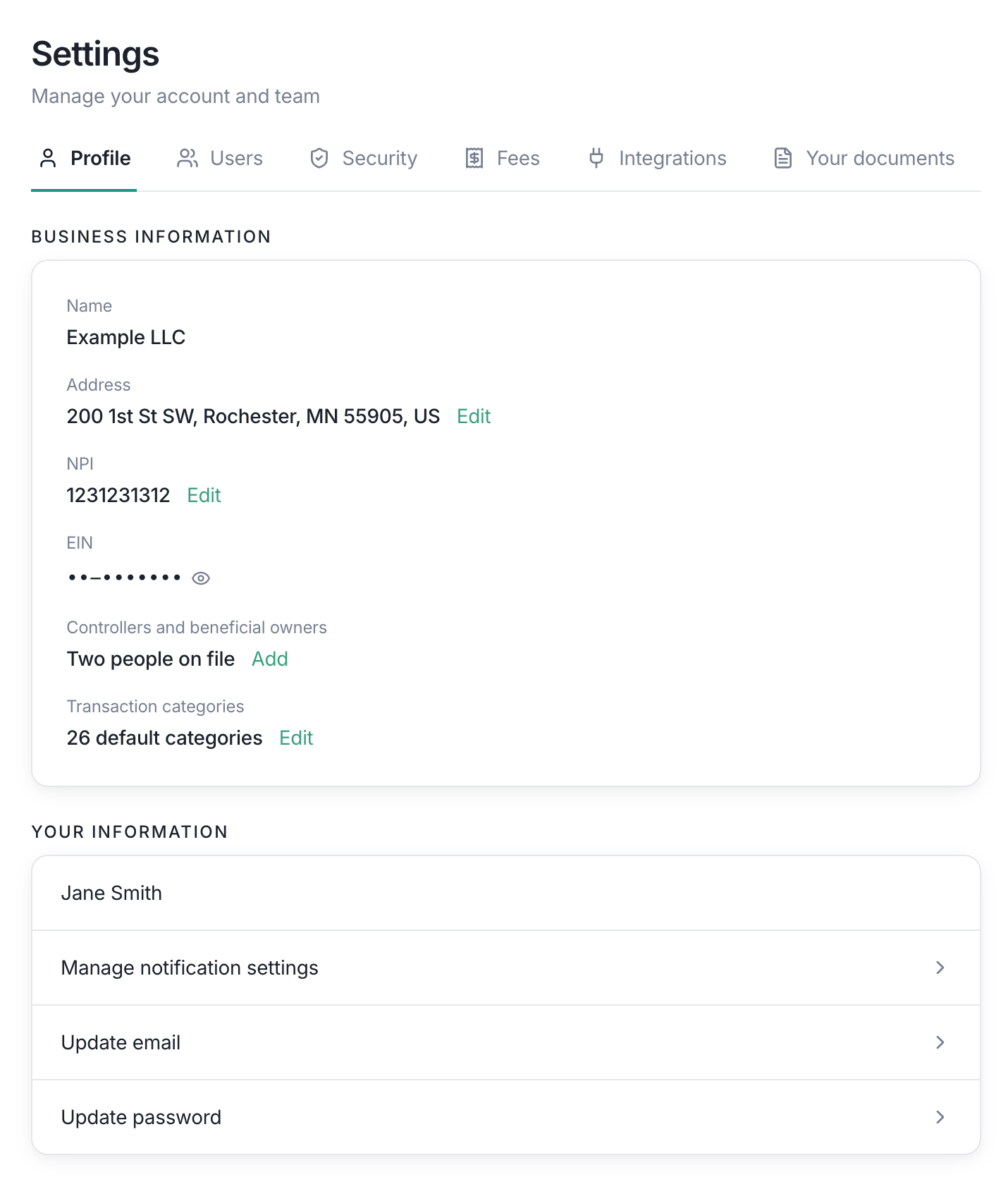
[Profile settings](https://app.getlemma.com/_/settings/profile) has two sections: **Business Information** for the selected entity and **Your Information** for your Lemma user account.
 ## Business Information
### Entity name
The entity name is shown for reference. It identifies the business whose settings you are viewing.
### Address
Owners only
The address shown here is the entity's business address. Click the green **Edit** link next to **Address**, update the required address fields, and select **Save**. Select **Cancel** to discard an edit in progress.
You can edit your entity's address directly from this page. Updating the address does not change the address of another entity in your account.
### NPI
Owners only
The NPI is the entity's 10-digit National Provider Identifier. Select **Edit**, enter a valid NPI, and choose **Save**. Lemma validates the check digit before saving. An invalid value stays in the dialog so you can correct it.
### EIN
Owners only
Owners can reveal the entity EIN using the eye control. The EIN is masked until you choose to reveal it. Other roles do not receive the reveal control.
### Controllers and beneficial owners
Owners only
This section shows how many controllers and beneficial owners are on file. Select **Add** to open the owner information flow and add another person to the entity's records. If you need to change the licensed professional owner on file, contact Lemma.
### Transaction categories
The Profile page links to transaction category settings. All members who can work with transactions can apply an existing category. Accounting and owners Accounting members and owners can create, rename, and archive custom categories. Default categories cannot be renamed or archived.
See [Transaction categories](/docs/entity-settings/transaction-categories) for the full workflow.
## Your Information
### Your name
Your name comes from your Lemma user profile and is shown at the top of this section.
### Notification settings
Select [Manage notification settings](/docs/entity-settings/notifications) to customize the notifications Lemma sends you. You can configure approval, alert, and transaction notifications. You can also choose whether to share these preferences across all entities you access.
### Email address
Select [Update email](https://app.getlemma.com/update-email) to change the email address used for your Lemma account. For security, you will need to click a link in *both* your old and your new email addresses before your email changes.
### Password
Select [Update password](https://app.getlemma.com/update-password) to change your password. Use a strong, unique password and never share it with another team member.
## What can I edit?
The Profile page is intentionally mixed-access. Everyone with access to the entity can see the business and personal information that applies to them, while entity-level changes are protected by the owner permission. If a green edit link is missing, another owner must make that change.
This documentation is built and hosted on [Mintlify](https://mintlify.com), a developer documentation platform.
## Business Information
### Entity name
The entity name is shown for reference. It identifies the business whose settings you are viewing.
### Address
Owners only
The address shown here is the entity's business address. Click the green **Edit** link next to **Address**, update the required address fields, and select **Save**. Select **Cancel** to discard an edit in progress.
You can edit your entity's address directly from this page. Updating the address does not change the address of another entity in your account.
### NPI
Owners only
The NPI is the entity's 10-digit National Provider Identifier. Select **Edit**, enter a valid NPI, and choose **Save**. Lemma validates the check digit before saving. An invalid value stays in the dialog so you can correct it.
### EIN
Owners only
Owners can reveal the entity EIN using the eye control. The EIN is masked until you choose to reveal it. Other roles do not receive the reveal control.
### Controllers and beneficial owners
Owners only
This section shows how many controllers and beneficial owners are on file. Select **Add** to open the owner information flow and add another person to the entity's records. If you need to change the licensed professional owner on file, contact Lemma.
### Transaction categories
The Profile page links to transaction category settings. All members who can work with transactions can apply an existing category. Accounting and owners Accounting members and owners can create, rename, and archive custom categories. Default categories cannot be renamed or archived.
See [Transaction categories](/docs/entity-settings/transaction-categories) for the full workflow.
## Your Information
### Your name
Your name comes from your Lemma user profile and is shown at the top of this section.
### Notification settings
Select [Manage notification settings](/docs/entity-settings/notifications) to customize the notifications Lemma sends you. You can configure approval, alert, and transaction notifications. You can also choose whether to share these preferences across all entities you access.
### Email address
Select [Update email](https://app.getlemma.com/update-email) to change the email address used for your Lemma account. For security, you will need to click a link in *both* your old and your new email addresses before your email changes.
### Password
Select [Update password](https://app.getlemma.com/update-password) to change your password. Use a strong, unique password and never share it with another team member.
## What can I edit?
The Profile page is intentionally mixed-access. Everyone with access to the entity can see the business and personal information that applies to them, while entity-level changes are protected by the owner permission. If a green edit link is missing, another owner must make that change.
This documentation is built and hosted on [Mintlify](https://mintlify.com), a developer documentation platform.