> ## Documentation Index
> Fetch the complete documentation index at: https://getlemma.com/docs/llms.txt
> Use this file to discover all available pages before exploring further.
# MSO management fees
> Bill a management fee from your MSO to a PC, have the PC's owner approve it, and automate it once the amount is stable.
An MSO bills its PCs for management services. On Lemma that runs as an invoice: the MSO sends a bill, the PC's owner reviews it against the agreement, and approving it moves the money. Neither entity needs access to the other's accounts.
In an MSO-PC structure this transfer carries more weight than an ordinary one, so the goal is not only to move the fee but to leave a record of what it covered and who approved it. See [MSO-PC compliance](/docs/guides/mso-pc-compliance) for why that matters.
Billing between two entities requires the Multi-Entity plan or above. See
[pricing](/docs/billing/pricing).
## Start with manual invoices
For the first month or two, send each management fee as a manual invoice rather than putting it on a schedule.
Early on the fee is rarely the same twice. Collections move, pass-through costs land in the wrong month, and the split you agreed to on paper meets its first real billing cycle. A manual invoice lets you bill the number that is actually right, attach the calculation behind it, and correct course before anything is automated.
It also builds the record. Every invoice carries locked line items, its own invoice number, and the PC owner's approval, so by the time you automate you have two or three months of documented, arm's-length transactions rather than a recurring transfer with nothing behind it.
Once the fee settles into a predictable amount, move it onto a [cash sweep](/docs/guides/cash-sweeps) so it runs on schedule. Sweeps are the right tool for a stable, recurring fee; they are the wrong tool for a number you are still working out.
## Send the invoice from the MSO
Go to [Invoicing](https://app.getlemma.com/_/invoicing) from the MSO. Sending an invoice requires Accounting, CFO, or Owner [banking permissions](/docs/guides/user-roles#banking-permissions).
Select the PC as the recipient. [Invoice contacts](/docs/guides/invoice-contacts)
covers the full rules on who you can bill.
Give each component of the fee its own description and amount. Line items
must sum to the invoice total, and they lock once the invoice is sent, so
the record cannot be altered afterward. An itemized bill is what turns a
management fee from a lump sum into something the PC's owner can actually
evaluate.
Add up to ten [attachments](/docs/guides/attachments), starting with the
management services agreement the fee is calculated under. A cross-entity
attachment is visible to both entities, so the MSO and the PC read the same
document rather than each holding a private version.
Lemma emails the PC's owners with the invoice PDF attached and a link to the
page where they can pay it.
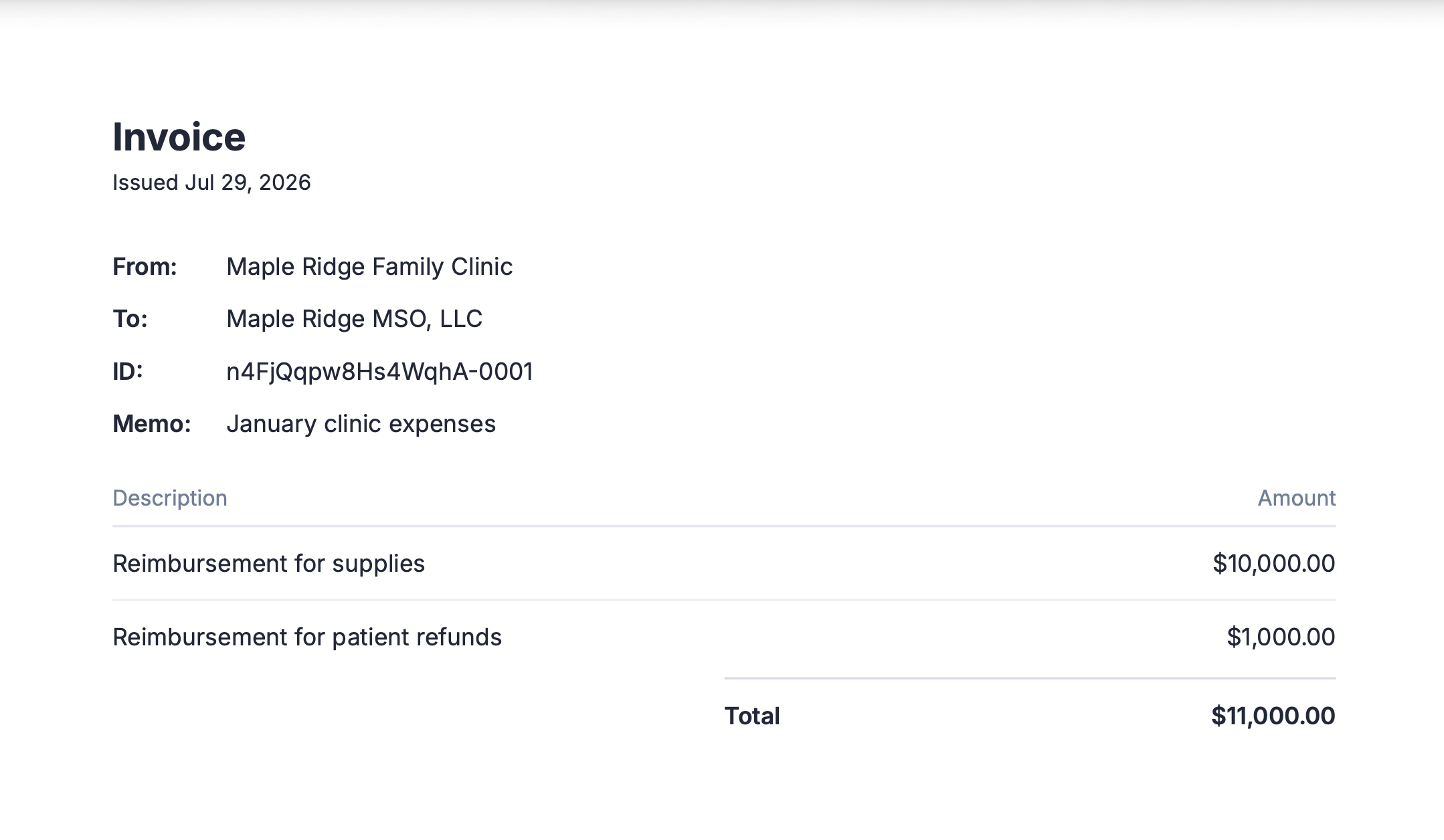 Every invoice is assigned a unique invoice number, so you can match it to the entry in your accounting software.
## Approve and pay from the PC
Only an owner of the PC can pay an invoice. Other members can see the request, but the payment cannot be sent until an owner approves it. This is the point of the workflow: the physician owner decides whether the MSO gets paid, rather than the MSO moving the money itself.
Go to [Move Money > Requests](https://app.getlemma.com/_/requests) and select the pending invoice. A badge on **Move Money** in the sidebar shows how many requests are waiting. You will see who sent it, the amount, the line items, and any attachments.
Open the management services agreement attached to the invoice and check the fee against it. Approving against the agreement, rather than on trust, is what puts a documented basis behind the payment.
Select the bank account the payment comes out of.
Approving sends the payment instantly, 24/7, including weekends and holidays. Rejecting cannot be undone, and the MSO would need to send a new invoice.
## Find the record afterward
Both entities keep their own copy of the record.
* **The transaction**: the payment appears on the [Transactions](https://app.getlemma.com/_/transactions?type=Invoice) page for both entities. Filter by method **Invoices**, then open one to download a receipt.
* **The approval**: the [approved transfers page](https://app.getlemma.com/_/requests?status=approved) lists every payment the PC approved, including who approved it and when. Use this when you need to show who authorized a fee, not just that it went out.
See [Invoices you've sent](/docs/guides/invoices-sent) and [Invoices you've paid](/docs/guides/invoices-paid) for more.
## Correct a mistake
A sent invoice cannot be edited, because its line items are locked.
While the invoice is still **Sent**, the MSO can open it and click **Cancel invoice** to withdraw it, then send a replacement with the correct details. That leaves both the withdrawn invoice and its replacement on the record, which is what you want for an auditable trail.
Once the PC's owner has approved the payment, the invoice is **Paid** and cannot be canceled.
## Automate once the fee is stable
When the amount stops changing month to month, move it onto a [cash sweep](/docs/guides/cash-sweeps) so the fee transfers on a fixed schedule instead of being invoiced and chased.
Two things to keep in mind when you make that switch:
* **The PC keeps control.** Where [approval rules](/docs/guides/approval-rules) are active, creating or editing a sweep needs an owner's approval, and the physician owner can always see a sweep and stop it. That authority cannot be delegated away.
* **You lose the per-payment approval.** A sweep moves money without the owner reviewing each transfer, so keep the [attachments](/docs/guides/attachments) on the transactions doing the work that the invoice used to do.
If the fee is variable by design, for example a percentage of collections, stay on invoices. The itemized bill is worth more than the automation.
## Next steps
How invoices work between two entities.
Put a stable recurring fee on a schedule.
Require sign-off above a threshold you set.
The guardrails behind the intercompany fee.
This documentation is built and hosted on [Mintlify](https://mintlify.com), a developer documentation platform.
Every invoice is assigned a unique invoice number, so you can match it to the entry in your accounting software.
## Approve and pay from the PC
Only an owner of the PC can pay an invoice. Other members can see the request, but the payment cannot be sent until an owner approves it. This is the point of the workflow: the physician owner decides whether the MSO gets paid, rather than the MSO moving the money itself.
Go to [Move Money > Requests](https://app.getlemma.com/_/requests) and select the pending invoice. A badge on **Move Money** in the sidebar shows how many requests are waiting. You will see who sent it, the amount, the line items, and any attachments.
Open the management services agreement attached to the invoice and check the fee against it. Approving against the agreement, rather than on trust, is what puts a documented basis behind the payment.
Select the bank account the payment comes out of.
Approving sends the payment instantly, 24/7, including weekends and holidays. Rejecting cannot be undone, and the MSO would need to send a new invoice.
## Find the record afterward
Both entities keep their own copy of the record.
* **The transaction**: the payment appears on the [Transactions](https://app.getlemma.com/_/transactions?type=Invoice) page for both entities. Filter by method **Invoices**, then open one to download a receipt.
* **The approval**: the [approved transfers page](https://app.getlemma.com/_/requests?status=approved) lists every payment the PC approved, including who approved it and when. Use this when you need to show who authorized a fee, not just that it went out.
See [Invoices you've sent](/docs/guides/invoices-sent) and [Invoices you've paid](/docs/guides/invoices-paid) for more.
## Correct a mistake
A sent invoice cannot be edited, because its line items are locked.
While the invoice is still **Sent**, the MSO can open it and click **Cancel invoice** to withdraw it, then send a replacement with the correct details. That leaves both the withdrawn invoice and its replacement on the record, which is what you want for an auditable trail.
Once the PC's owner has approved the payment, the invoice is **Paid** and cannot be canceled.
## Automate once the fee is stable
When the amount stops changing month to month, move it onto a [cash sweep](/docs/guides/cash-sweeps) so the fee transfers on a fixed schedule instead of being invoiced and chased.
Two things to keep in mind when you make that switch:
* **The PC keeps control.** Where [approval rules](/docs/guides/approval-rules) are active, creating or editing a sweep needs an owner's approval, and the physician owner can always see a sweep and stop it. That authority cannot be delegated away.
* **You lose the per-payment approval.** A sweep moves money without the owner reviewing each transfer, so keep the [attachments](/docs/guides/attachments) on the transactions doing the work that the invoice used to do.
If the fee is variable by design, for example a percentage of collections, stay on invoices. The itemized bill is worth more than the automation.
## Next steps
How invoices work between two entities.
Put a stable recurring fee on a schedule.
Require sign-off above a threshold you set.
The guardrails behind the intercompany fee.
This documentation is built and hosted on [Mintlify](https://mintlify.com), a developer documentation platform.