> ## Documentation Index
> Fetch the complete documentation index at: https://getlemma.com/docs/llms.txt
> Use this file to discover all available pages before exploring further.
# Set up an MSO and its PCs
> Open a Lemma entity for each professional corporation, and split the application between the MSO's administrator and the physician owner.
An MSO and each professional corporation it supports are separate legal entities, so each one gets its own Lemma application, its own accounts, and its own lockbox. This page walks an MSO administrator through opening those entities, and shows which parts of a PC application the administrator can complete and which parts belong to the physician owner.
For the reasoning behind the split, and the guardrails Lemma configures once the entities exist, see [MSO-PC compliance](/docs/guides/mso-pc-compliance).
## Before you start
Have these ready for each entity you plan to open:
* **Business details**: legal name, EIN, and state of incorporation
* **A control person**: a principal officer with significant management authority
* **Every beneficial owner**: anyone holding 25% or more of the entity
* **The licensed professional owner**, for a PC, PLLC, or PA: the physician who owns the practice
You do not need the physician's personal details in hand. [Invite them to the application](#invite-the-physician-owner) and they enter those themselves.
## Open an application for each entity
Start with the MSO, then open a separate application per PC. You do not need a separate email login for each one.
Go to [Add New Entity](https://app.getlemma.com/onboarding/new-application)
in the sidebar. If you already have an entity on Lemma, use the entity
switcher to move between them without signing out.
Enter the entity's legal name, EIN, and state of incorporation. This
information is required for regulatory compliance (Know Your Business).
List the control person and everyone holding 25% or more. On a PC, PLLC, or
PA application, this includes the licensed professional owner.
You can run several applications at once. The [onboarding dashboard](https://app.getlemma.com/onboarding) lists every in-progress form, which is the usual way an MSO tracks a batch of PC applications. See [Own multiple entities](/docs/guides/own-multiple-entities) for how the entities relate once they are open.
If you started an application you no longer need, open it, click your avatar
at the top-right, and select **Archive application**. Only draft applications
can be archived.
## Who fills in what
Lemma applications support several people working at the same time, similar to a shared document. Each person fills in the sections they are responsible for, so the physician never has to send personal details to the MSO's staff. See [Collaborate on onboarding](/docs/guides/collaboration) for how shared editing works.
### What the MSO administrator can complete
* The business profile: legal name, EIN, and state of incorporation
* The business address and contact details
* Listing the control person and every beneficial owner, including the physician
* Supporting documents, such as a management services agreement
* Inviting collaborators
* Submitting the finished application
### What the physician owner completes themselves
* **Their date of birth**
* **Their Social Security Number**
Both open in a private popup rather than in the form, so the physician can enter them without the value ever reaching the MSO's staff. Once saved, the value:
* Is encrypted immediately and stored in Lemma's database
* Is not retained in your browser or sent to anyone else's browser
* Is visible to collaborators only as "filled in", never as a value
To correct one of these fields, enter a new value in the same popup. The original is not shown. Anyone on the application can submit it once the fields are filled.
## Invite the physician owner
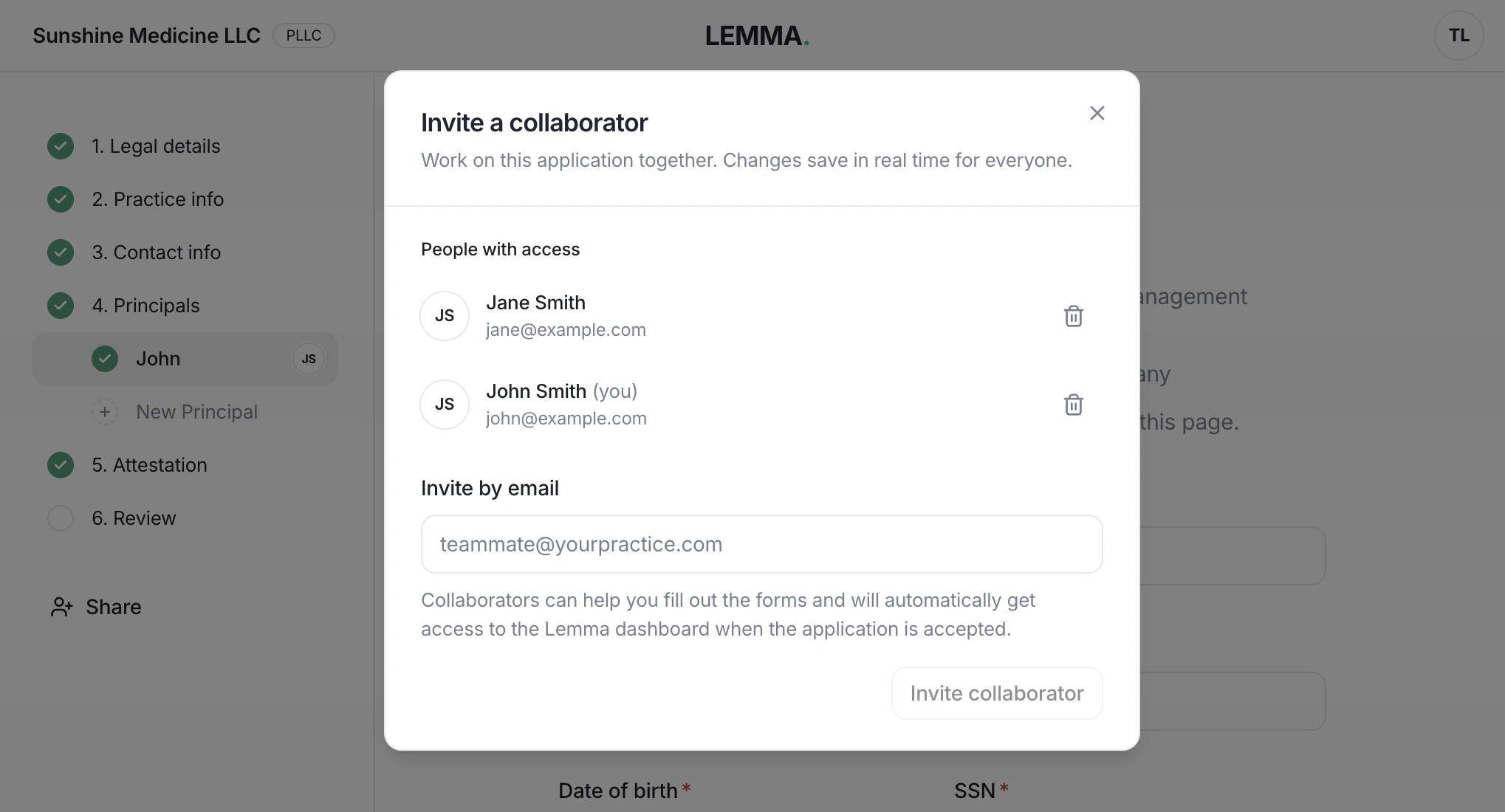
Inviting the physician to the application is the cleanest path. They enter their own sensitive details, and their participation replaces the attestation you would otherwise sign on their behalf.
In the application, click **Share** in the left sidebar.
Enter the physician's email address and click **Invite collaborator**. They
receive an email with a link to the application.
Once the invitation is sent, you can also copy the link to the page you are
on and send it to them over text or chat.
 ### Licensed professional owners at the review step
On a PC, PLLC, or PA application, the review step lists every licensed professional owner who has not already joined as a collaborator, and offers to invite them. Each owner has a Yes/No toggle, defaulted to **Yes**.
Leave it on **Yes** to send the invitation when you submit, or switch it to **No** to submit without inviting that owner. Either choice lets you submit. Invitations sent this way carry over to the entity once the application is approved, so the physician has access from day one without extra setup.
## Attestation
Every application includes an attestation confirming that everyone who owns 25% or more is listed.
If none of the listed owners has joined the application, the attestation also asks you to confirm that an owner authorized you to open and operate the account. You can back this with a supporting document, such as a management services agreement, power of attorney, or board resolution. PNG, JPG, and PDF files up to 10 MB are accepted, and you can send the document to Lemma later if you do not have it on hand.
Inviting an owner to collaborate removes the authorization attestation, because their participation shows they approve of the account being opened.
## Submit and get approved
Each application ends with the [Lemma Platform Agreement](https://getlemma.com/lemma-platform-agreement) and the [Business Associate Agreement](https://getlemma.com/business-associate-agreement), signed electronically. No wet signature is needed.
Most entities are approved within a few hours. In some cases Lemma's banking partners cannot verify an identity from the tax ID alone, and Lemma will ask for a scan of a government-issued ID.
## After approval
Each approved entity gets:
* **Checking accounts**, ready to use, with account and routing numbers on the [Accounts page](https://app.getlemma.com/_/accounts). See [Fund your account](/docs/guides/funding-your-account) to move in an opening balance.
* **A lockbox**, provisioned instantly, with its address on the [Lockbox page](https://app.getlemma.com/_/lockbox).
* **Dashboard access for every collaborator**, including the physician owner.
Lemma records which owner of the entity is its physician on file. That member's access is protected: no one can lower their permissions or remove them from the entity, including the MSO and the physician themselves. To change who that is, [contact us](mailto:contact@getlemma.com).
To add anyone who was not part of the application, such as an office manager or an outside billing company, invite them from the [Users page](https://app.getlemma.com/_/settings/users) and give them the access they need. [User roles](/docs/guides/user-roles) covers what each role can do.
## Next steps
Move an opening balance in from a bank you already use.
Bill a management fee from the MSO to a PC and have the PC's owner approve it.
The guardrails Lemma configures once your entities are open.
Roles for your staff, and practice access for a billing company.
This documentation is built and hosted on [Mintlify](https://mintlify.com), a developer documentation platform.
### Licensed professional owners at the review step
On a PC, PLLC, or PA application, the review step lists every licensed professional owner who has not already joined as a collaborator, and offers to invite them. Each owner has a Yes/No toggle, defaulted to **Yes**.
Leave it on **Yes** to send the invitation when you submit, or switch it to **No** to submit without inviting that owner. Either choice lets you submit. Invitations sent this way carry over to the entity once the application is approved, so the physician has access from day one without extra setup.
## Attestation
Every application includes an attestation confirming that everyone who owns 25% or more is listed.
If none of the listed owners has joined the application, the attestation also asks you to confirm that an owner authorized you to open and operate the account. You can back this with a supporting document, such as a management services agreement, power of attorney, or board resolution. PNG, JPG, and PDF files up to 10 MB are accepted, and you can send the document to Lemma later if you do not have it on hand.
Inviting an owner to collaborate removes the authorization attestation, because their participation shows they approve of the account being opened.
## Submit and get approved
Each application ends with the [Lemma Platform Agreement](https://getlemma.com/lemma-platform-agreement) and the [Business Associate Agreement](https://getlemma.com/business-associate-agreement), signed electronically. No wet signature is needed.
Most entities are approved within a few hours. In some cases Lemma's banking partners cannot verify an identity from the tax ID alone, and Lemma will ask for a scan of a government-issued ID.
## After approval
Each approved entity gets:
* **Checking accounts**, ready to use, with account and routing numbers on the [Accounts page](https://app.getlemma.com/_/accounts). See [Fund your account](/docs/guides/funding-your-account) to move in an opening balance.
* **A lockbox**, provisioned instantly, with its address on the [Lockbox page](https://app.getlemma.com/_/lockbox).
* **Dashboard access for every collaborator**, including the physician owner.
Lemma records which owner of the entity is its physician on file. That member's access is protected: no one can lower their permissions or remove them from the entity, including the MSO and the physician themselves. To change who that is, [contact us](mailto:contact@getlemma.com).
To add anyone who was not part of the application, such as an office manager or an outside billing company, invite them from the [Users page](https://app.getlemma.com/_/settings/users) and give them the access they need. [User roles](/docs/guides/user-roles) covers what each role can do.
## Next steps
Move an opening balance in from a bank you already use.
Bill a management fee from the MSO to a PC and have the PC's owner approve it.
The guardrails Lemma configures once your entities are open.
Roles for your staff, and practice access for a billing company.
This documentation is built and hosted on [Mintlify](https://mintlify.com), a developer documentation platform.