> ## Documentation Index
> Fetch the complete documentation index at: https://getlemma.com/docs/llms.txt
> Use this file to discover all available pages before exploring further.
# Paying an invoice
> You pay invoices from the [approvals page](https://app.getlemma.com/_/requests). You'll get an email for every invoice with a link taking you directly to the page where you can pay.
## Finding invoices waiting on you
When an invoice needs your action, a badge appears on **Move Money** in the sidebar with the number of requests waiting for you.
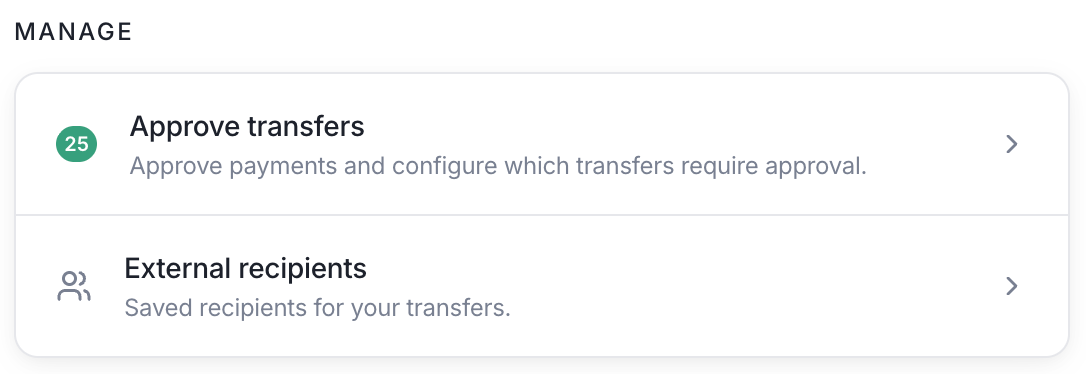
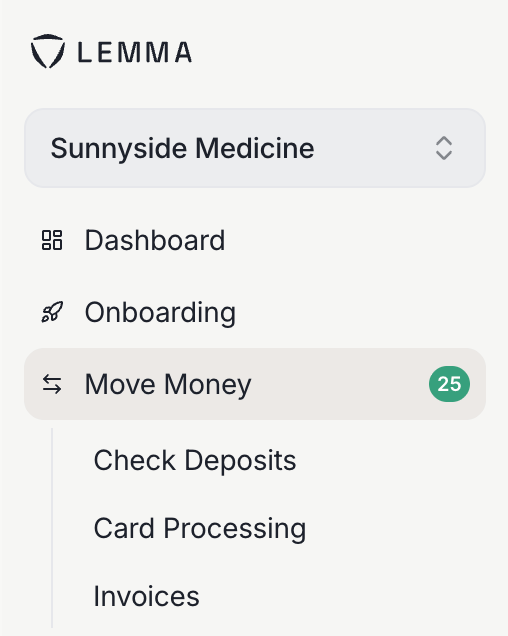 After clicking on [Move Money](https://app.getlemma.com/_/move-money), scroll down to the [Approve transfers option](https://app.getlemma.com/_/requests). It carries the same badge and takes you to the approvals page.
 ## Approving an invoice payment
Only owners can pay an invoice. Other team members can see the request but the payment cannot be sent until an owner approves it.
Go to [Move Money > Requests](https://app.getlemma.com/_/requests) and select the pending
invoice. You'll see who sent it, the amount, the line items, and any
attachments the sender included.
The invoice drawer will show a dropdown. Select the bank account you will use to pay the invoice.
Click "approve" to send the invoice payment. The payment is sent instantly, 24/7, including on weekends and holidays.
Alternatively, you can always click "Reject". You cannot undo a rejection, the sender would need to create another invoice.
Once paid, the invoice appears on your [Transactions](https://app.getlemma.com/_/transactions?type=Invoice) page. See [Invoices you've paid](/docs/guides/invoices-paid) for finding the receipt and who approved the payment.
This documentation is built and hosted on [Mintlify](https://mintlify.com), a developer documentation platform.
## Approving an invoice payment
Only owners can pay an invoice. Other team members can see the request but the payment cannot be sent until an owner approves it.
Go to [Move Money > Requests](https://app.getlemma.com/_/requests) and select the pending
invoice. You'll see who sent it, the amount, the line items, and any
attachments the sender included.
The invoice drawer will show a dropdown. Select the bank account you will use to pay the invoice.
Click "approve" to send the invoice payment. The payment is sent instantly, 24/7, including on weekends and holidays.
Alternatively, you can always click "Reject". You cannot undo a rejection, the sender would need to create another invoice.
Once paid, the invoice appears on your [Transactions](https://app.getlemma.com/_/transactions?type=Invoice) page. See [Invoices you've paid](/docs/guides/invoices-paid) for finding the receipt and who approved the payment.
This documentation is built and hosted on [Mintlify](https://mintlify.com), a developer documentation platform.