

Who can do what
Card management is limited to Owner, CFO, and Accounting banking roles. Read-only members can hold a card and see their own transactions, but cannot issue, change, freeze, rename, or activate a card, including their own.
Because limit changes, freezes, and activation are Owner, CFO, or Accounting only, a cardholder cannot raise their own limit, unfreeze their own card, or activate a physical card that arrived in their own mail.
Why pay with a debit card
Use a Lemma debit card for vendor payments and online purchases whenever the option exists:- Payment protection. Card payments can be disputed through the card networks, so a bad charge or a vendor that doesn’t deliver is recoverable in a way a completed wire or ACH usually isn’t.
- Fraud protection. Lemma automatically declines high-risk transactions, and you can freeze the card instantly if anything looks off.
- Bounded exposure. A card only spends the cash in its funding account, and per-transaction and total-spend limits cap how much a single charge or a bad week can cost you.
- Instant issuance. Virtual card numbers are usable the moment they’re created, so you can pay a new vendor or place an online order without waiting for a physical card.
Virtual and physical cards
- Virtual cards — available instantly after creation. Use them for online purchases or anywhere a physical card isn’t required.
- Physical cards — a branded card mailed to your address, arriving in an estimated 5-7 business days. The card number is visible as soon as you issue it, so online purchases work right away. In-person purchases stay blocked until you activate the card after it arrives.
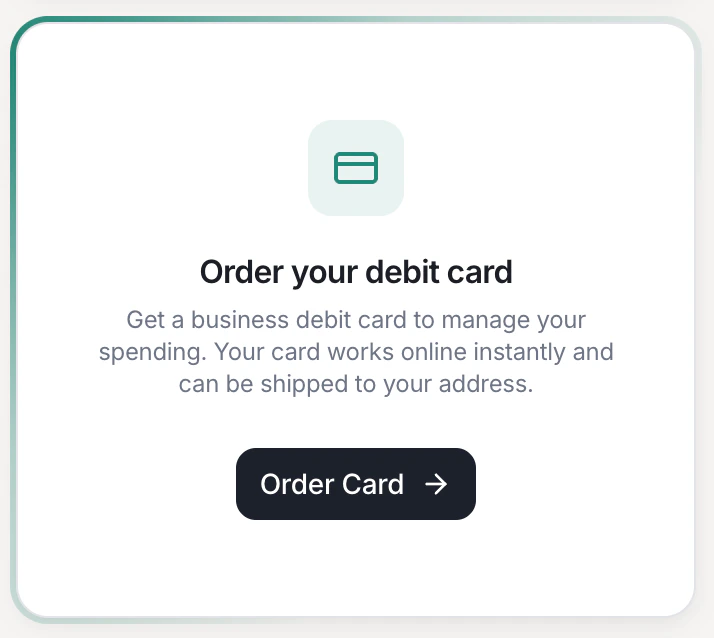
Press Order Card to issue your first debit card.
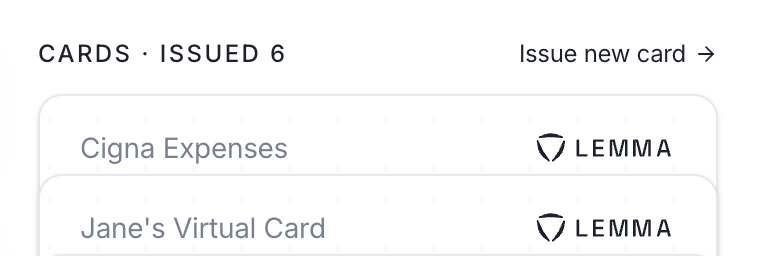
Already have a card? Click 'Issue new card' at the top-right of your cards list.
Issuing a card
Open Issue new card and fill in:- Cardholder — any team member with a banking role. Read-only members can be cardholders, which lets you manage their spending without granting them access to the account.
- Card nickname — how you’ll recognize the card in the cards list and on transactions.
- Card type — virtual or physical. Each cardholder can hold one physical card per entity, so the physical option is unavailable when the selected cardholder already has one. Virtual cards are unlimited.
- Funding account — the account the card spends from. Preselected to the account with the most available cash.
- Spending limits — optional per-transaction and total-spend caps (see below).
Tracking and activating a physical card
A physical card ships USPS and arrives in an estimated 5-7 business days. Its number works for online purchases from the moment you issue it, but the card declines in-person purchases until someone activates it, so activate the card as soon as it arrives. Open the card from the cards page to follow the shipment.Activating the card
1
Open the card
Go to the cards page and select the card
that arrived.
2
Check that the delivery status reads Delivered
Activate card stays disabled until the card is delivered. If the card is
in your hands but the status hasn’t caught up, give the shipment a day to
update.
3
Press Activate card
The card starts approving in-person purchases immediately, within whatever
spending limits it already has. The delivery panel disappears once the card
is activated.
Only Owner, CFO, and Accounting members can activate a card. A read-only
cardholder who receives their own card in the mail needs an Owner, CFO, or
Accounting teammate to activate it for them.
If the card doesn’t arrive
Don’t activate a card you haven’t physically received. If a card is lost in transit, cancel it and issue a new one.Spending limits
Lemma automatically blocks high-risk transactions. Card spending is always capped at the available cash in the linked account. On top of that, you can set two optional limits when issuing a card:- Max purchase amount — declines any single purchase above a set dollar amount.
- Max total spend — caps total spend across a day, week, or month. Limits reset at UTC midnight. If you live on the east coast, that means your daily card limit resets at 7PM EST.
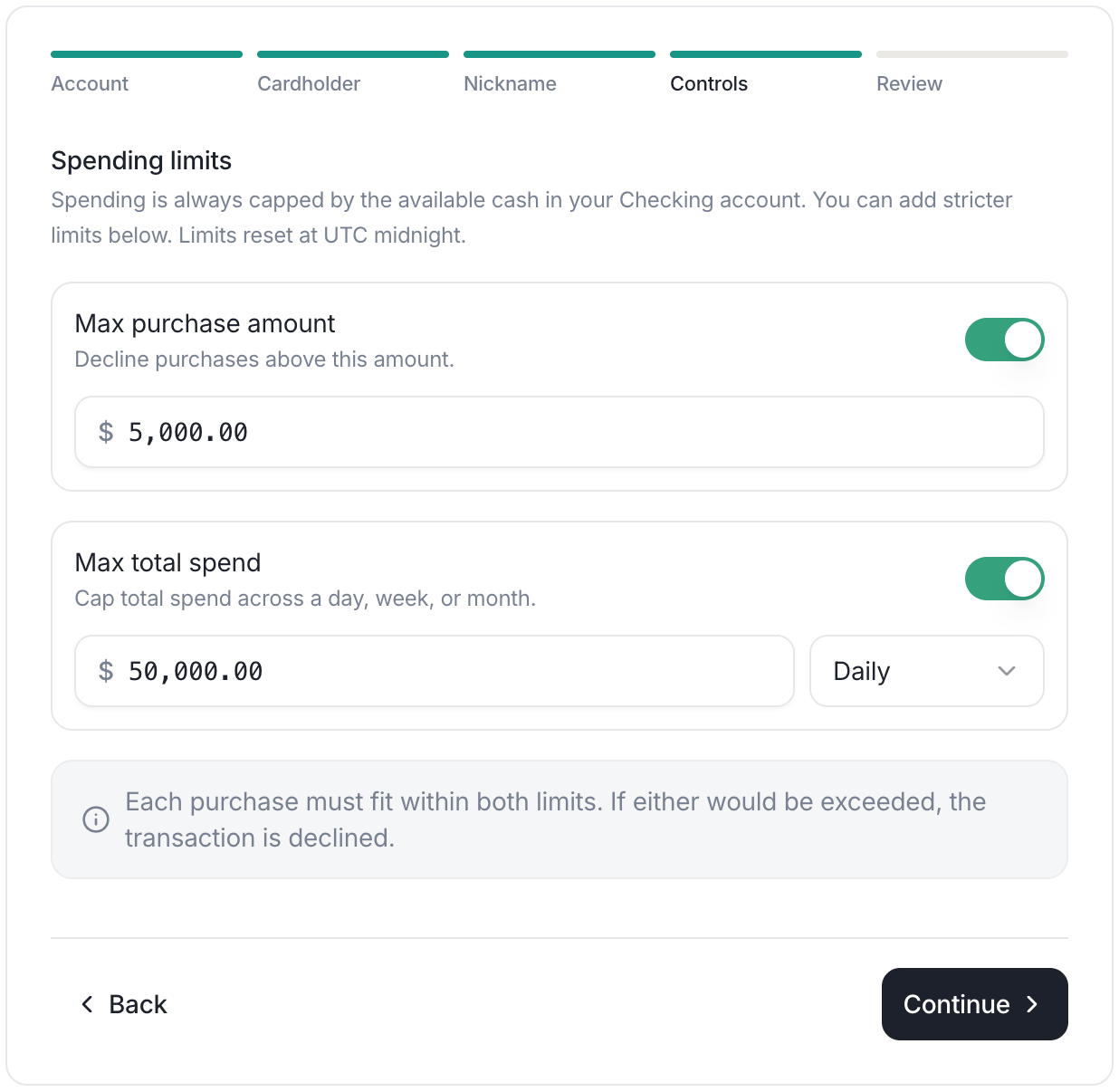
Set a max purchase amount and a max total spend limit when issuing a card.
Managing your cards
Changing limits on a card you already have
You do not have to get the limits right when you issue the card. Open the card, click the... button at the top-right, and select Update limits to change either limit, switch one off, or add one you skipped. New transactions are checked against the new limits as soon as you save.
If you switch both limits off, the debit card approves any purchase up to the cash available in its bank account.
Freezing cards
Freeze a card to instantly block new transactions. Freezing preserves its spending limits and transaction history, so unfreezing puts the card back exactly as it was.1
Open the card
Go to the cards page and select the card
you want to freeze.
2
Open the card menu
Click the
... button at the top-right of the card’s page.3
Select Freeze card
Confirm in the dialog that follows. The card is frozen immediately.
Renaming a card
The nickname is how you’ll recognize a card on the cards page and against its transactions. To change the nickname, open the card’s page and click the pencil beside its name. The new name shows up everywhere the old one did, including on transactions that already happened.Cancelling cards
Cancel a card when you want to permanently stop it, for example when an employee leaves or a physical card is lost. Cancelling cannot be undone. If you only need to pause spending temporarily, freeze the card instead. Cancelling covers the physical card too, so a card cancelled while in the mail can never be activated, even after it lands. Delivery tracking and the Activate card button both disappear from a cancelled card’s page.1
Open the card
Go to the cards page and select the card
you want to cancel.
2
Open the card menu
Click the
... button at the top-right of the card’s page.3
Select Cancel card
Confirm in the dialog that follows. The card is cancelled immediately and
can no longer approve transactions.