

Finding invoices waiting on you
When an invoice needs your action, a badge appears on Move Money in the sidebar with the number of requests waiting for you.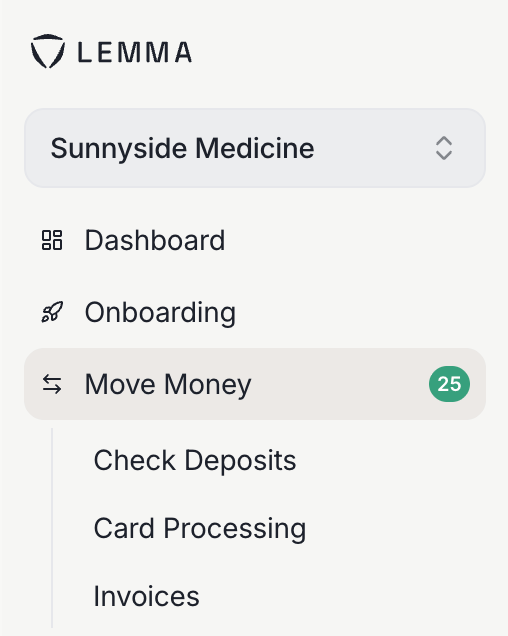
The badge on Move Money shows how many requests are waiting.
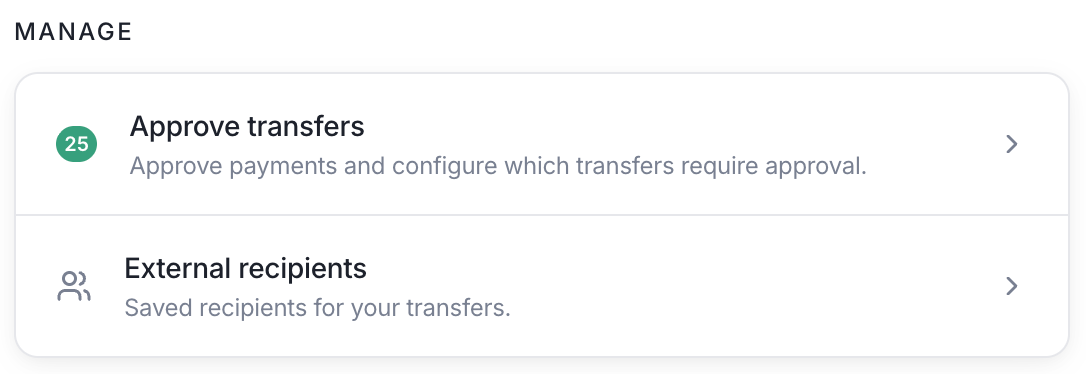
The Approve transfers card on the Move Money page.
Approving an invoice payment
Only owners can pay an invoice. Other team members can see the request but the payment cannot be sent until an owner approves it.1
Open the request
Go to Move Money > Requests and select the pending
invoice. You’ll see who sent it, the amount, the line items, and any
attachments the sender included.
2
Select a bank account to pay the invoice
The invoice drawer will show a dropdown. Select the bank account you will use to pay the invoice.
3
Approve the payment
Click “approve” to send the invoice payment. The payment is sent instantly, 24/7, including on weekends and holidays.Alternatively, you can always click “Reject”. You cannot undo a rejection, the sender would need to create another invoice.