

How collaboration works
When two or more people are in the application at the same time, you’ll see an avatar on the page each coworker is viewing. Any text they type appears on your screen in real time, and anything you type appears on theirs. This means you can divide up the form naturally: your office manager handles the business profile, one owner fills in their own personal details, and another owner fills in theirs, all at the same time without coordinating over email or phone.Inviting a collaborator
To invite someone to fill out the application with you:- Open your application
- Click Share in the left sidebar
- Enter the person’s email address and click “Invite collaborator”
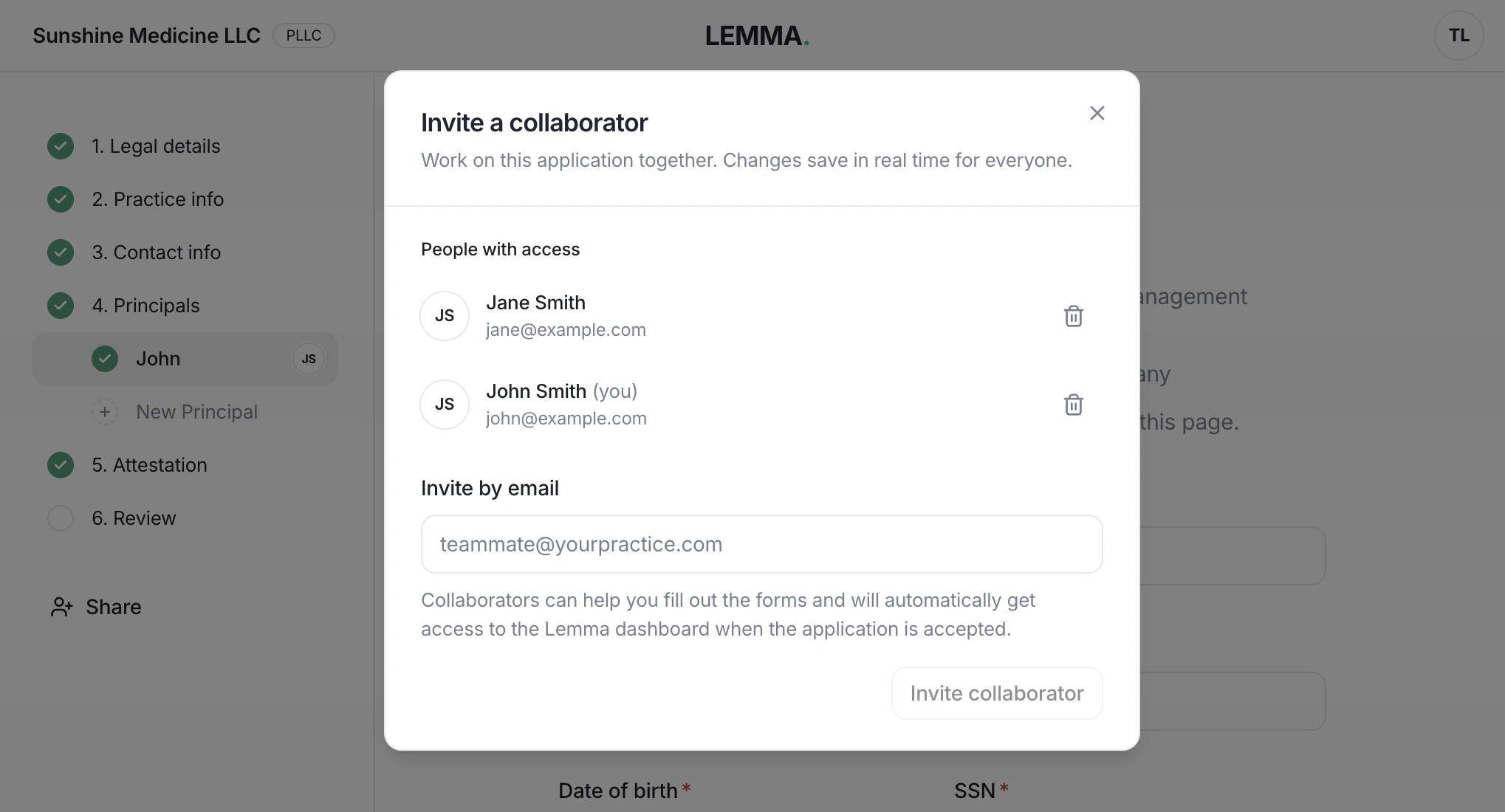
The invitation dialog. Enter your collaborator's email to send them an invite.
Sensitive fields
Some fields contain information that’s personal enough that even coworkers shouldn’t see it. Birthdays and Social Security Numbers fall into this category. When you click one of these fields, it opens in a private popup rather than directly in the form. Once you save the value:- It is encrypted immediately and stored in our database
- It is not retained in your browser or transmitted to anyone else’s browser
- Your collaborators can see that the field has been filled in, but cannot read the value
Accessing the Lemma dashboard
When the account is approved, all collaborators automatically get full access to the Lemma dashboard. This is intentional: since beneficial owners are required to fill out the application, they’ll have access to the account without any extra setup. If you need to invite additional team members who weren’t part of the application, or remove a collaborator who shouldn’t have long-term access, you can do that from the Users page.Managing multiple applications
If you’re onboarding several entities at once, for example an MSO opening accounts for each of its professional corporations, you can start a separate application for each one. Click here to visit our onboarding dashboard where you can see all of your in-progress forms and onboard new entities any time. If you started an application you no longer need, open it, click your avatar at the top-right of the application page, and click Archive application. The application disappears from the onboarding dashboard for you and every collaborator. You can only archive draft applications. To modify a submitted application, contact us.
Click your avatar at the top-right of the application page to find the Archive application option.